

How to add POS Users in Invent ERP?
How to add POS Users in Invent ERP?
Managing your point of sale effectively means ensuring that the right people have access to the system. With Invent ERP, you can create POS users, link them to employees, and grant access rights - all while keeping your workflow simple and secure.
Step by Step Process
First: Create a User
Step 1: Head to Users
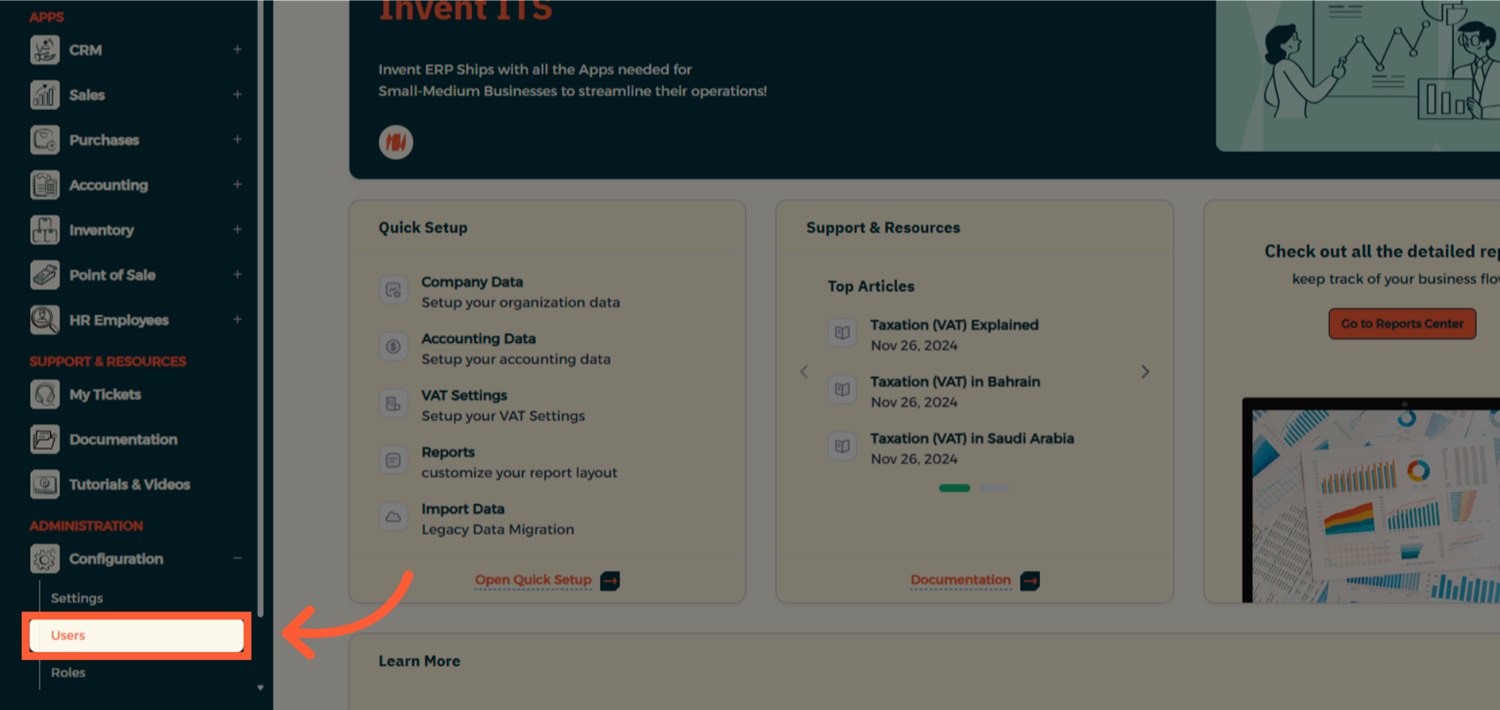
Step 2: Add a New User
From the Users List, click Add to create a new user
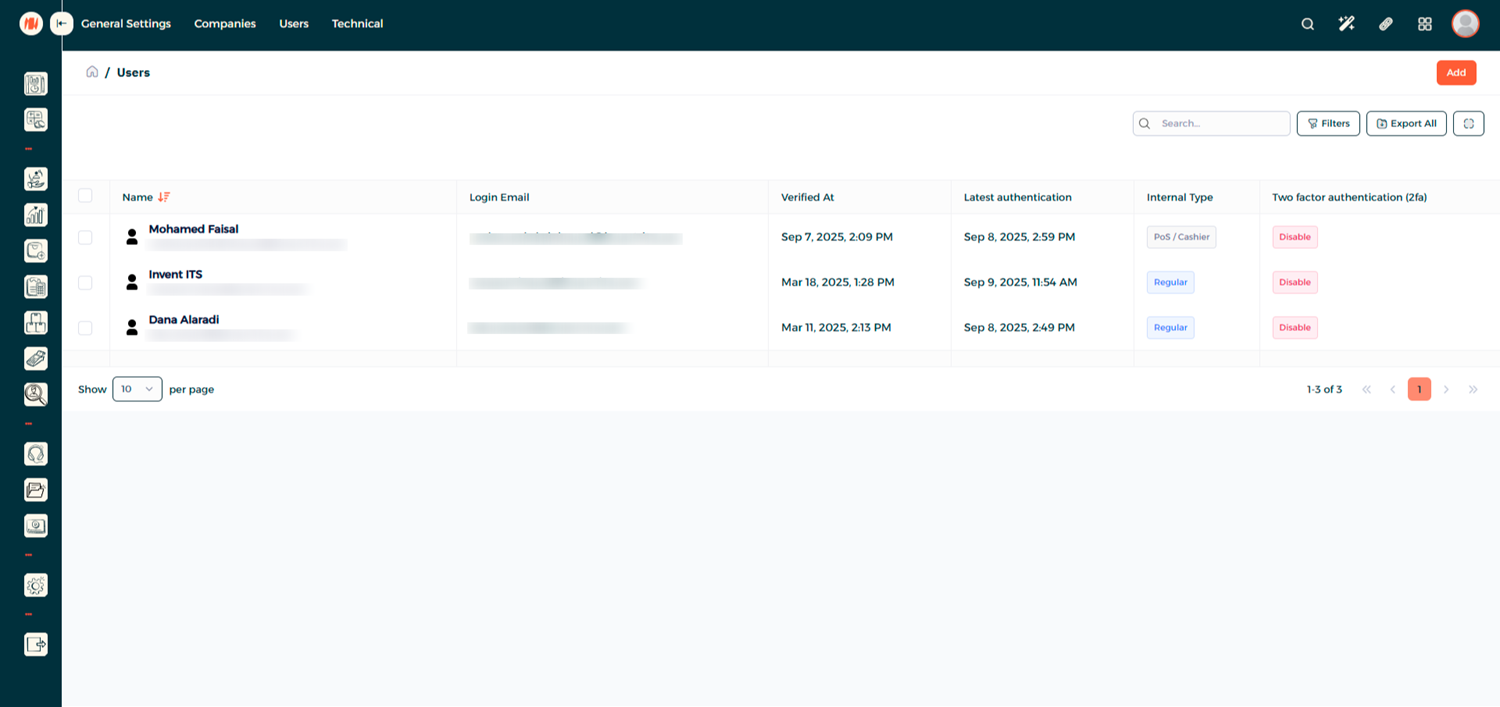
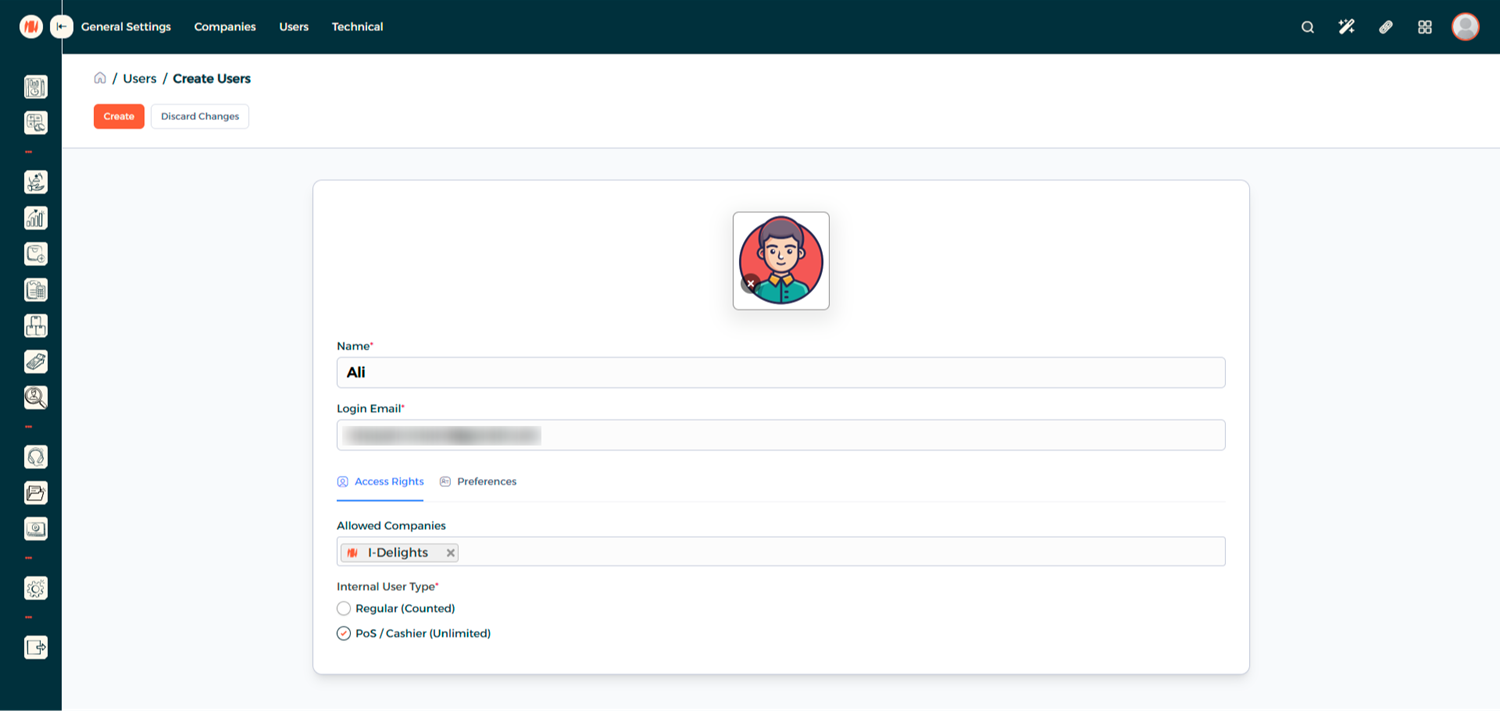
Step 3: Fill the Details
Fill in the user details, then mark the user as POS User to grant access to the POS.
Step 4: Send Invitation
After creating the user, send an invitation so they can active their account.
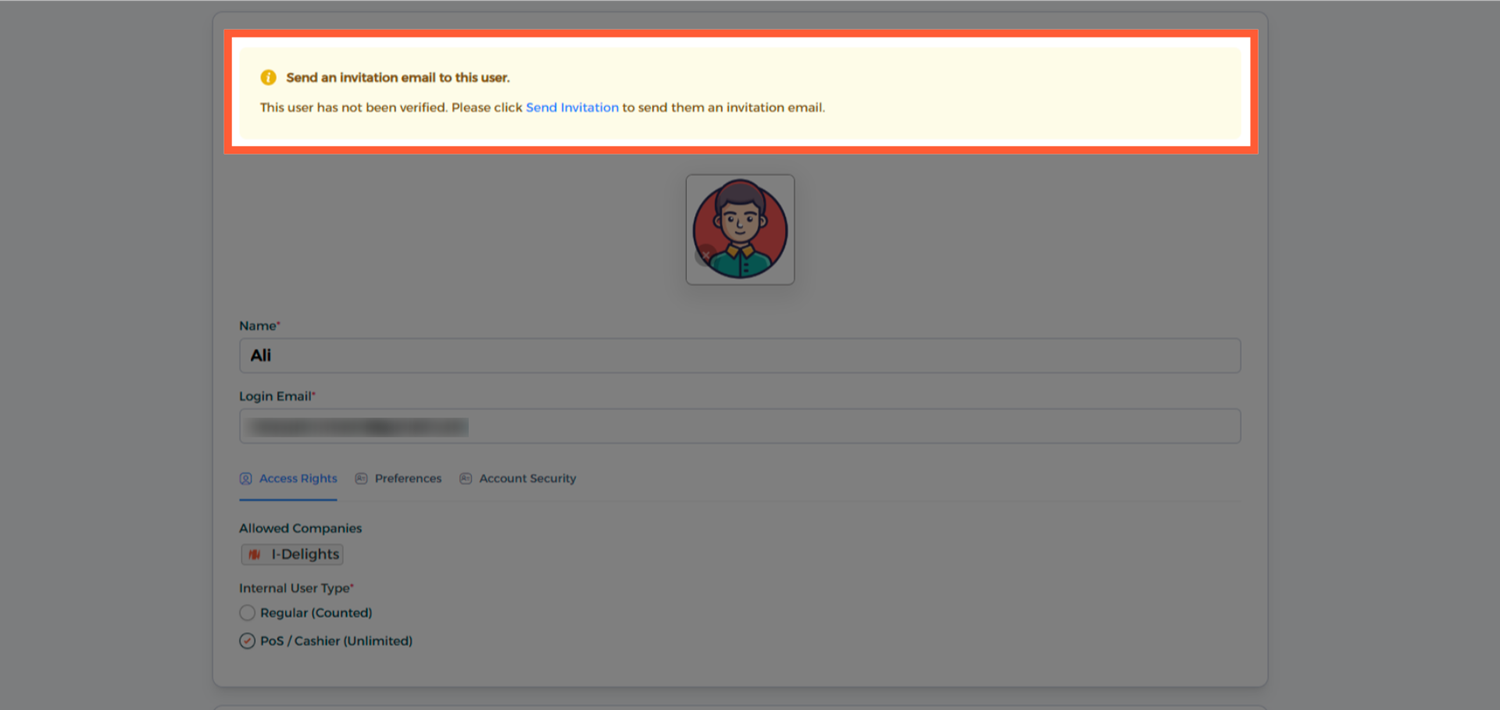
For the users to access the system, they will need to accept an invitation. Once they verify their email, the yellow "unverified" box will disappear.
Second: Create an Employee Profile
Step 5: Head to Employees
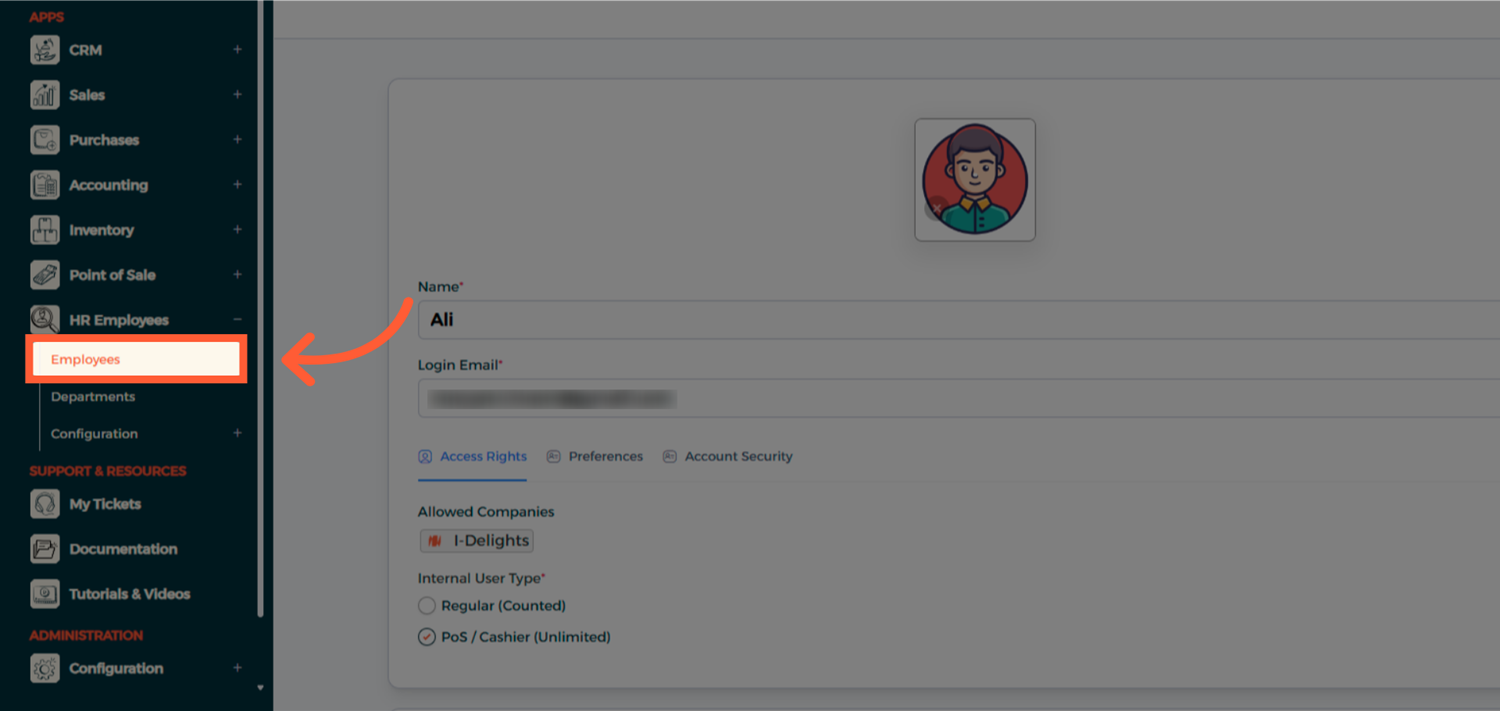
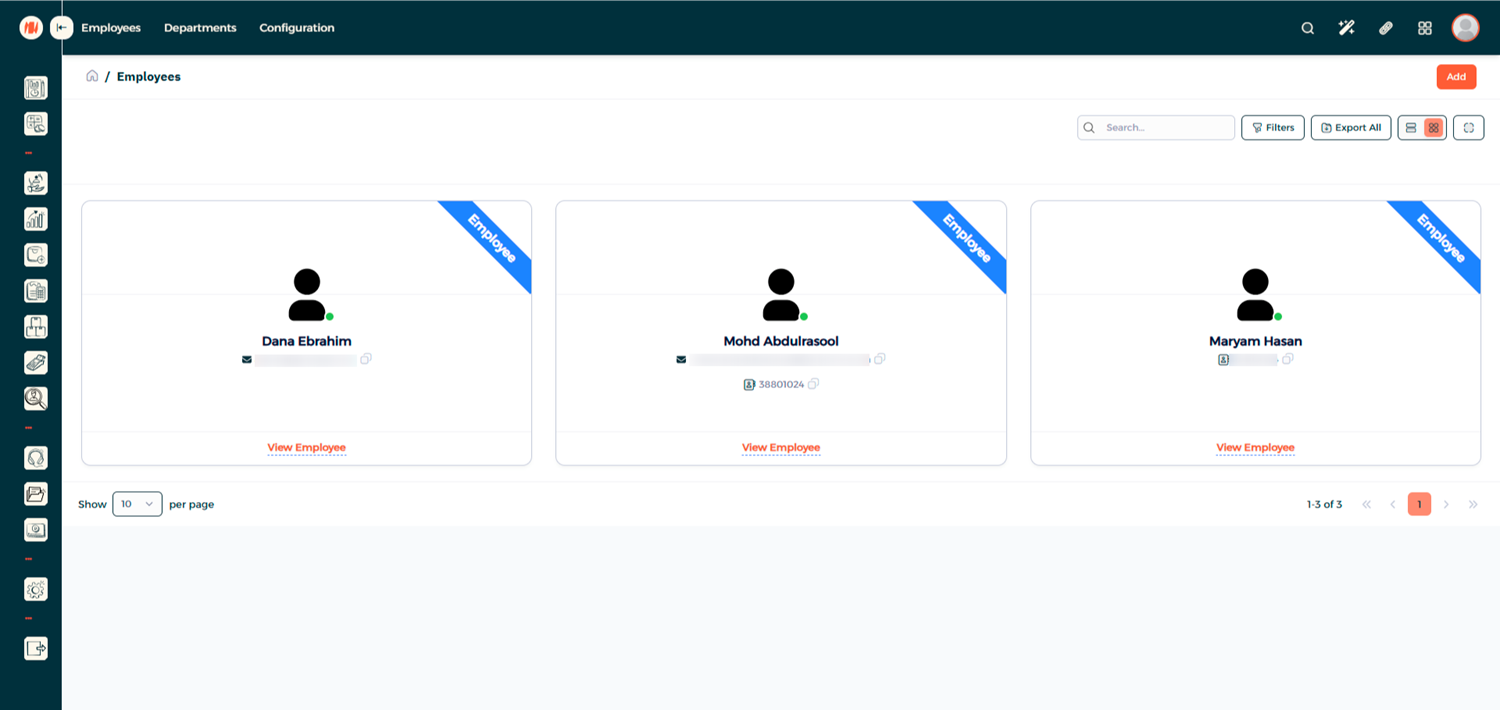
Step 6: Add a New Employee
From the Employees List, click Add to create a new Employee Profile
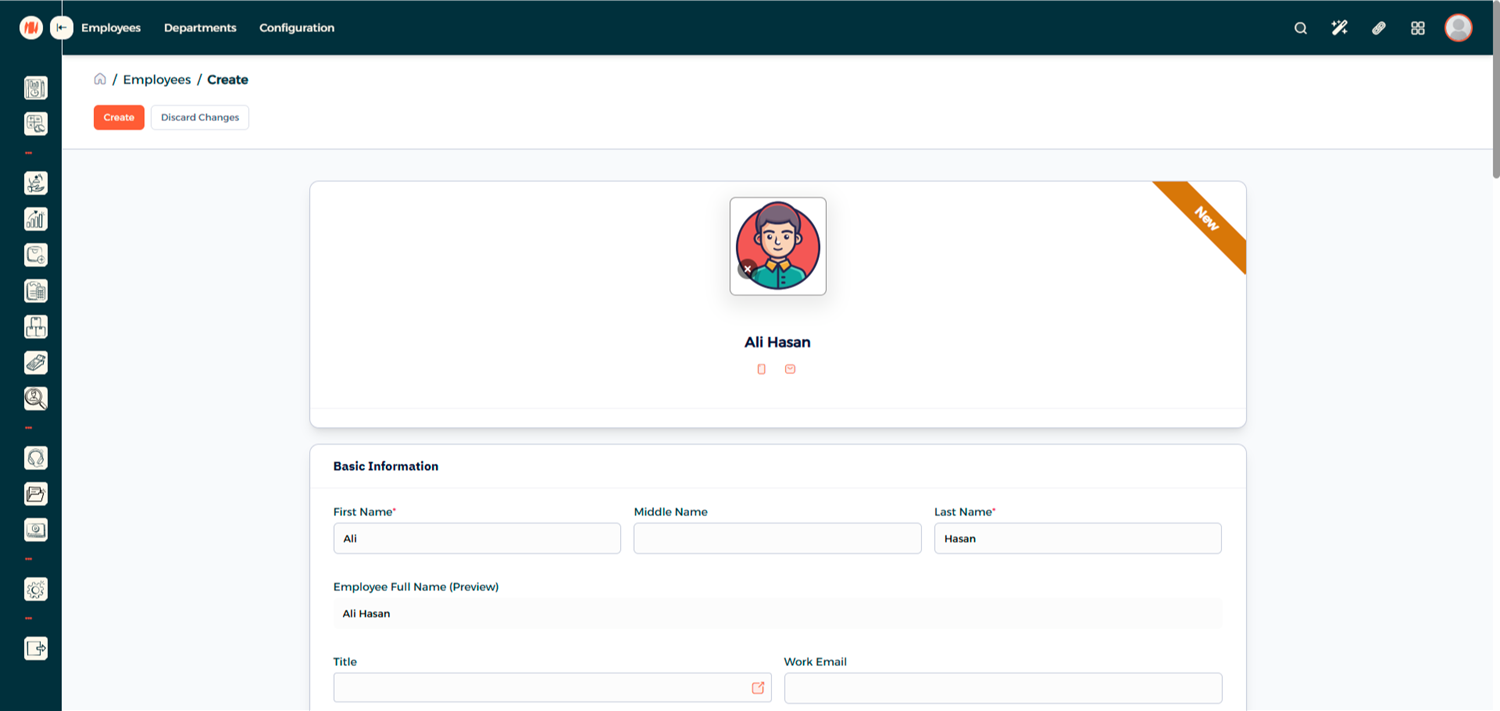
Step 7: Fill the Details
Fill in the required employee information
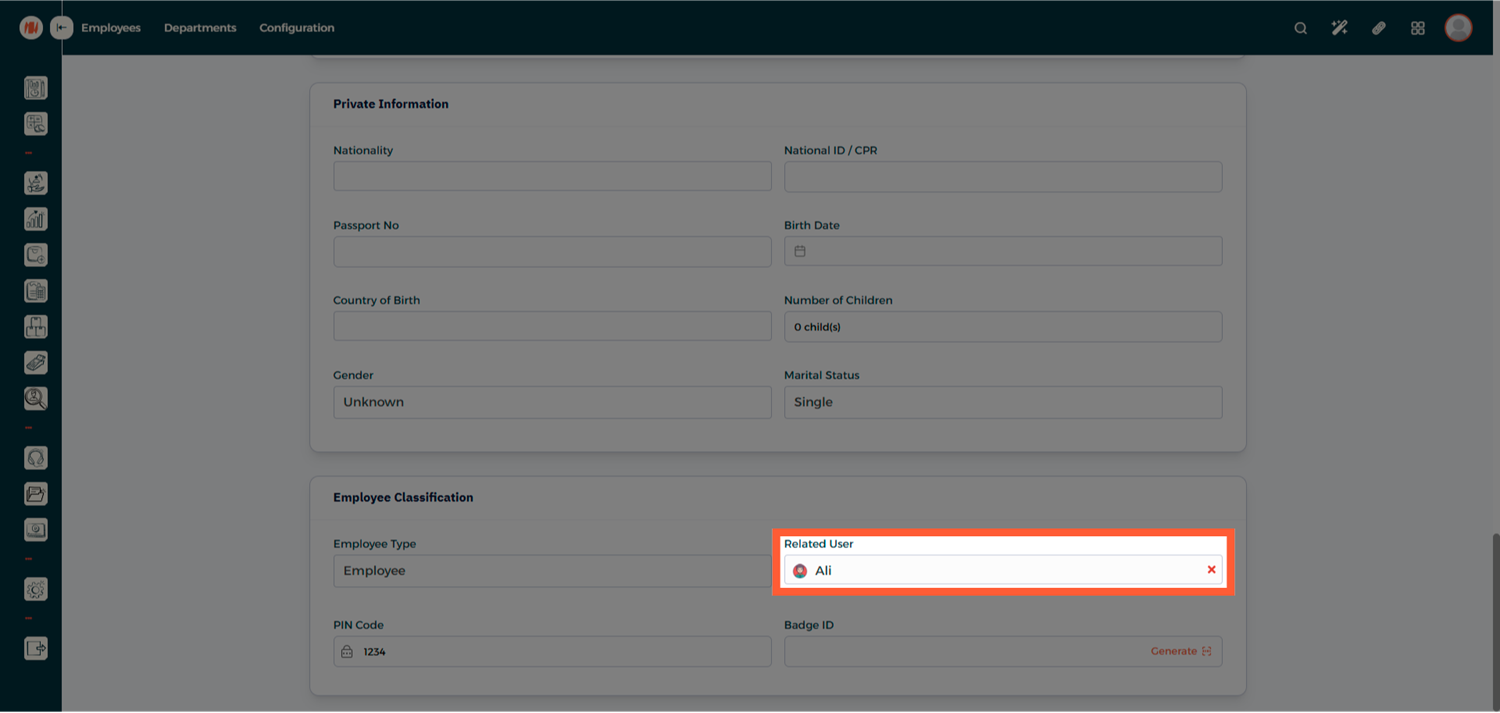
Step 8: Link the User Account
At the bottom of the page, Link the Employee to the User Account you created earlier
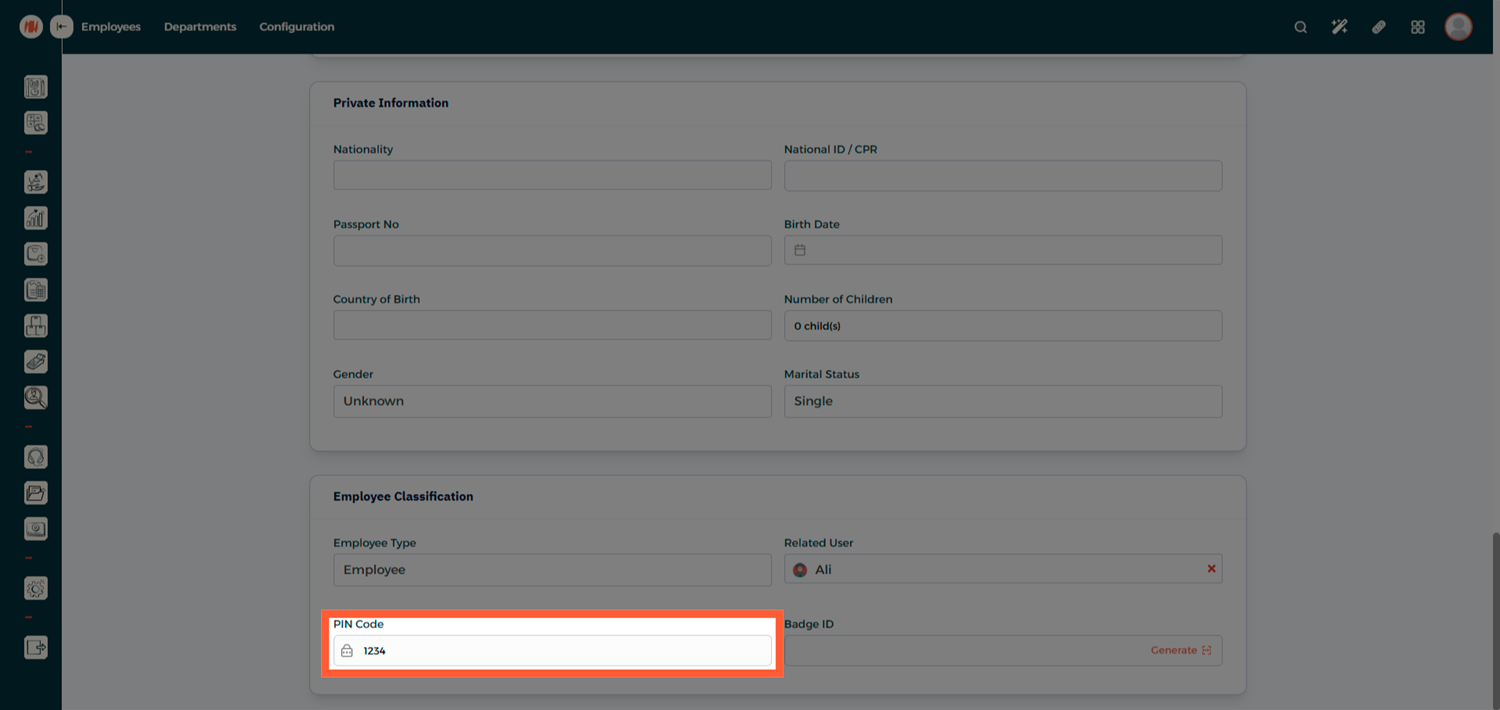
Step 9: Set a PIN Code (Optional)
Assign a PIN Code for quick and secure POS login
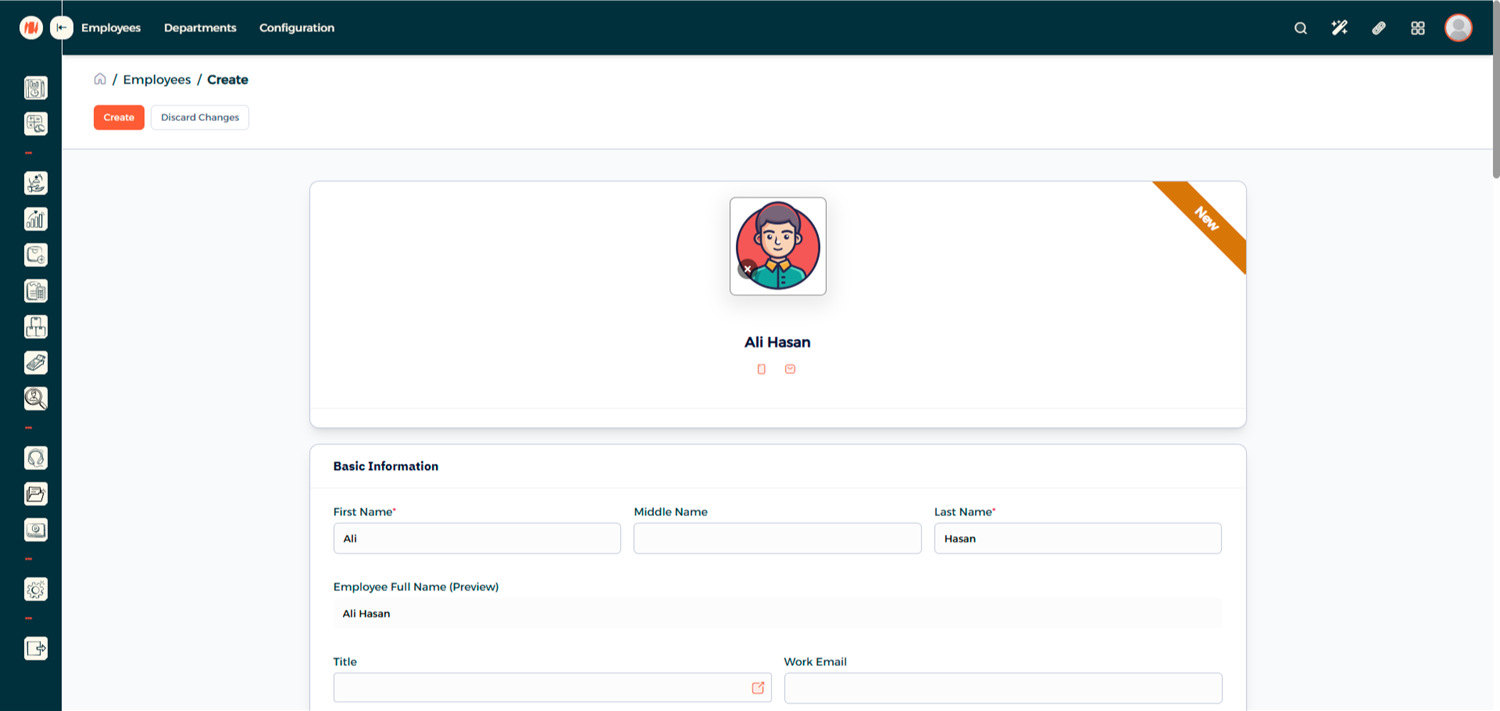
Step 10: Create the Employee
Click Create to save the Employee Profile
Third: Assign the Employee to a POS Configuration
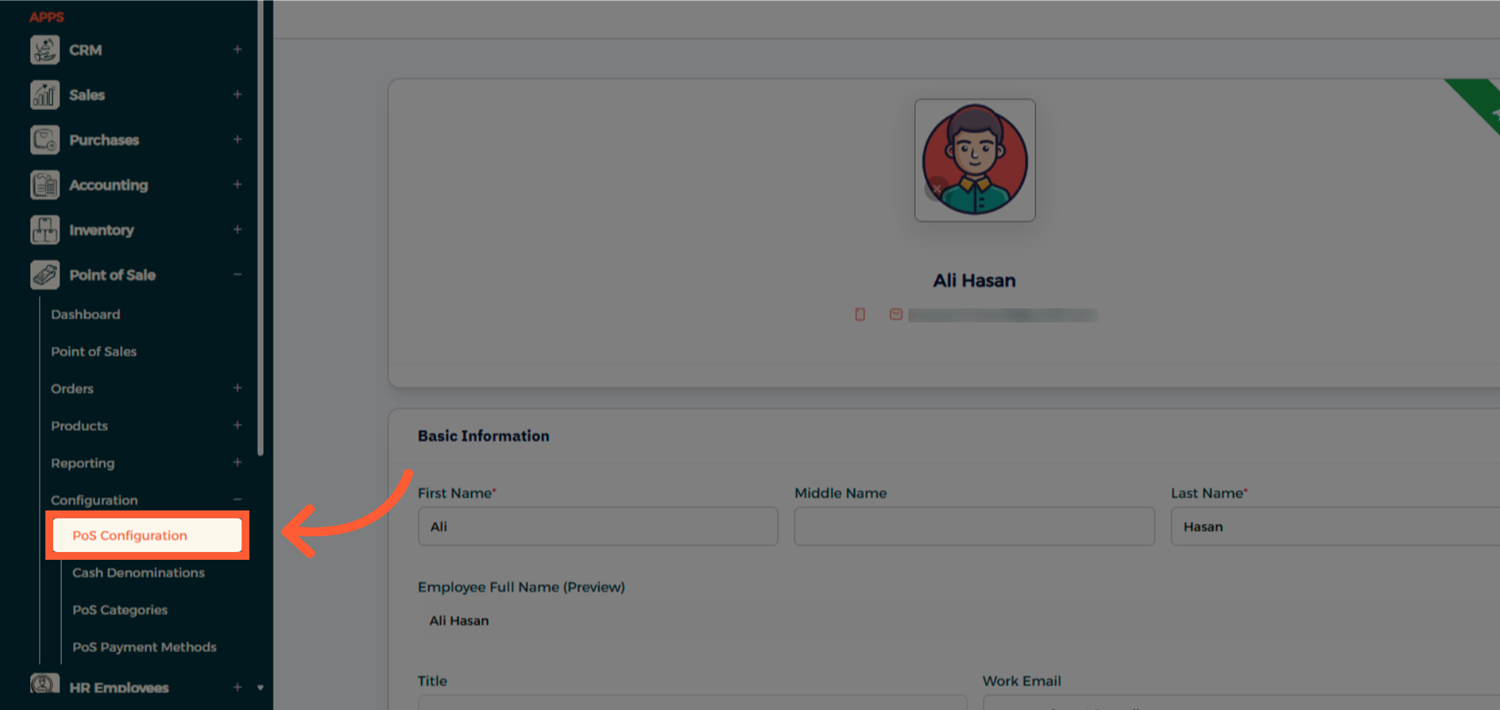
Step 11: Head to POS Configuration
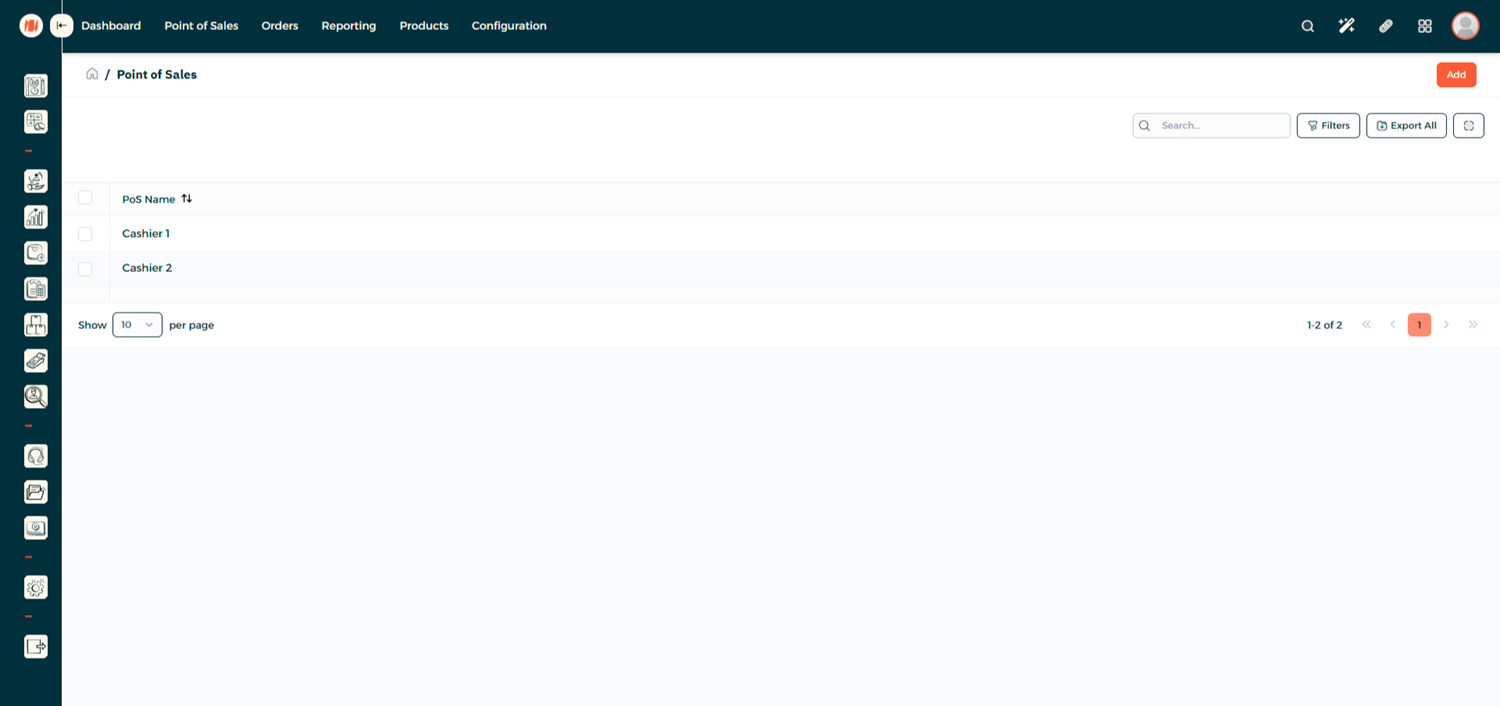
Step 12: View Available POS
You'll see a list of all available POS configurations in the system
Step 13: Edit the Desired POS
Select the POS you want to assign the employee to and click Edit
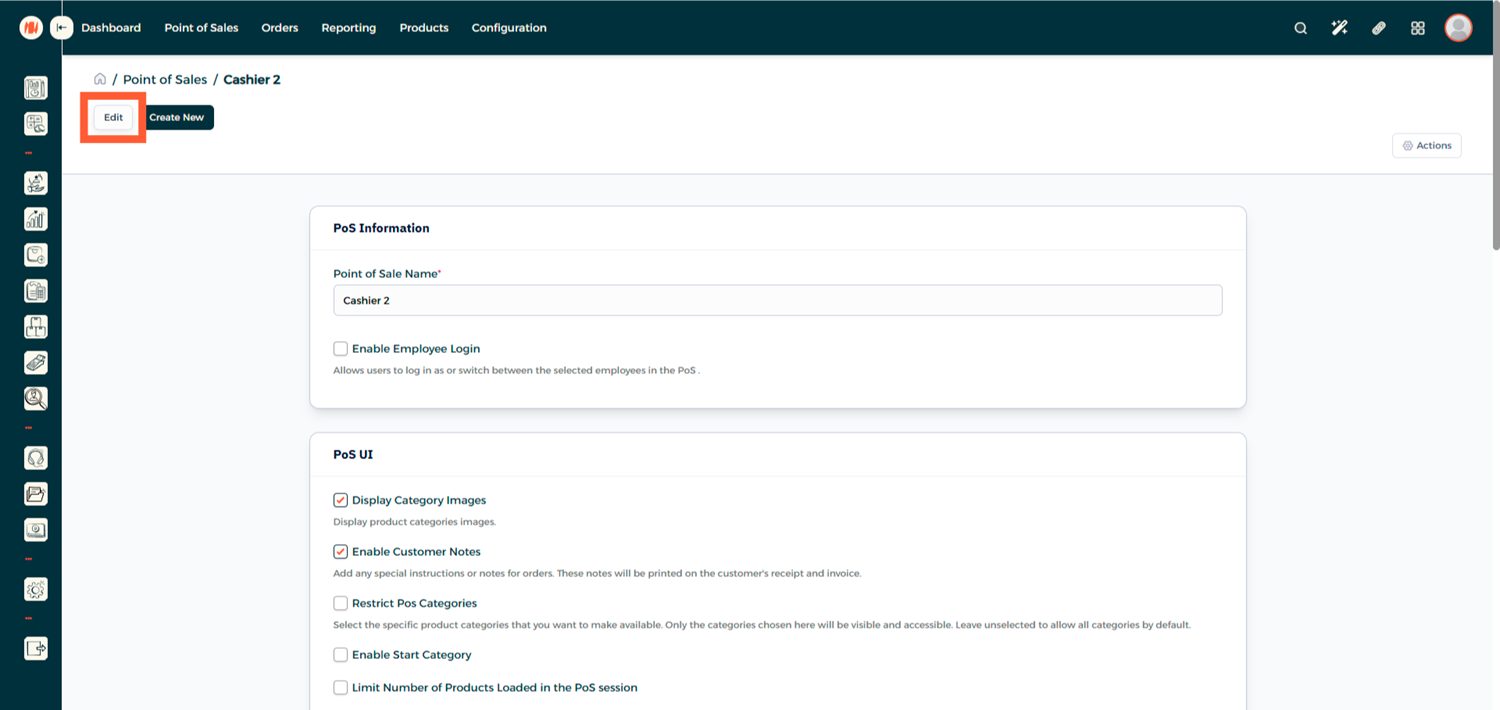
Step 14: Enable Employee Login
Enable Employee login, assign employees with the appropriate access level, then click Save
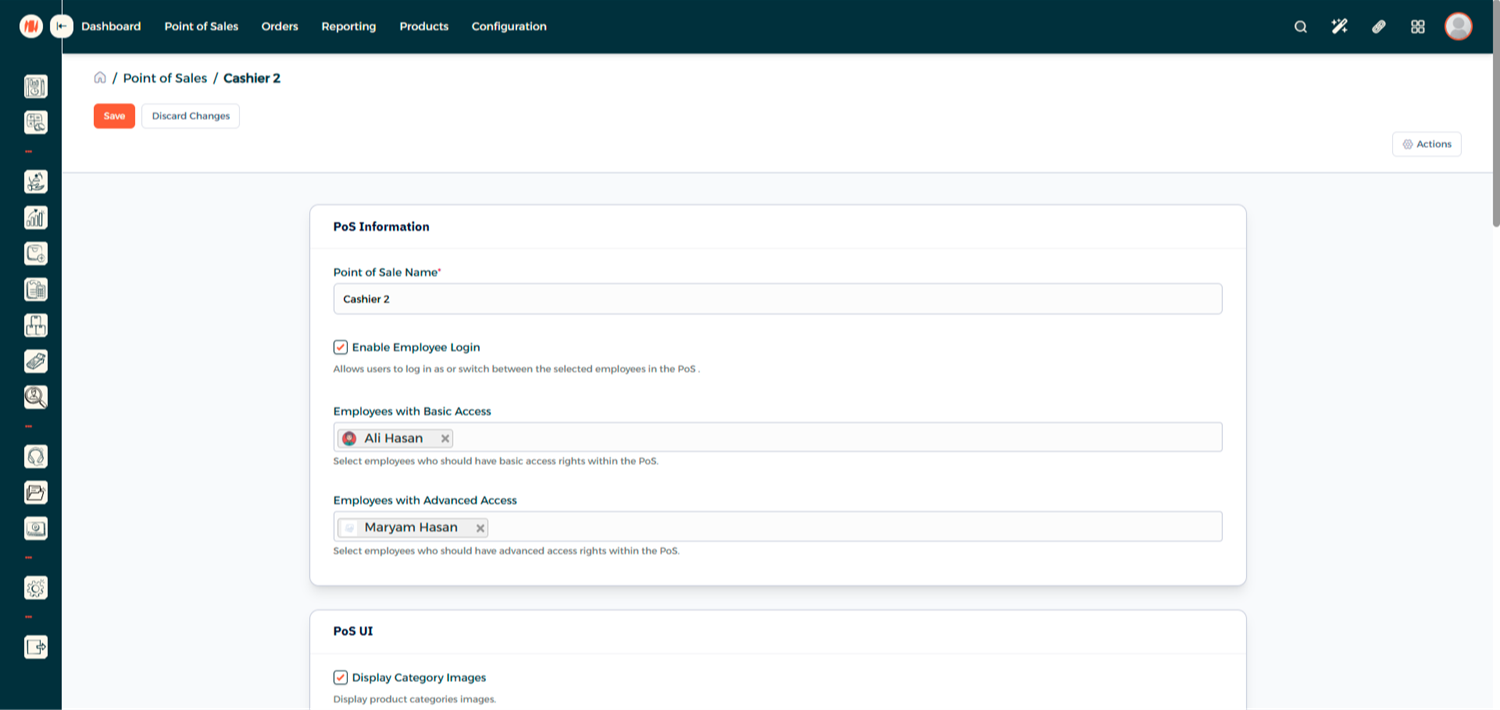
- Basic Access: Limited POS actions
- Advanced Access: Additional privileges such as closing the register
Make sure to add an Admin User to your Advanced Access so the admin will be able to close the session.
Fourth: Login to POS as a POS User
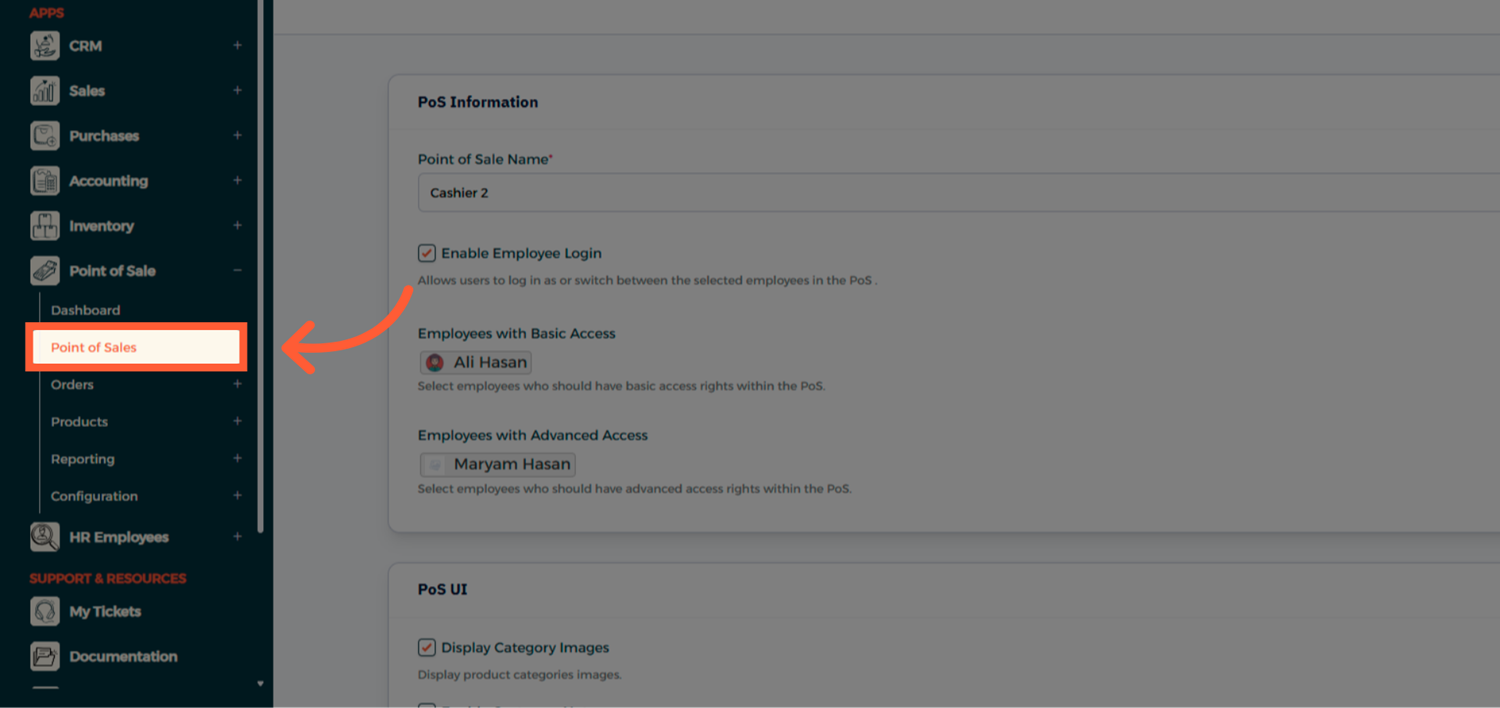
Step 15: Open Point of Sale
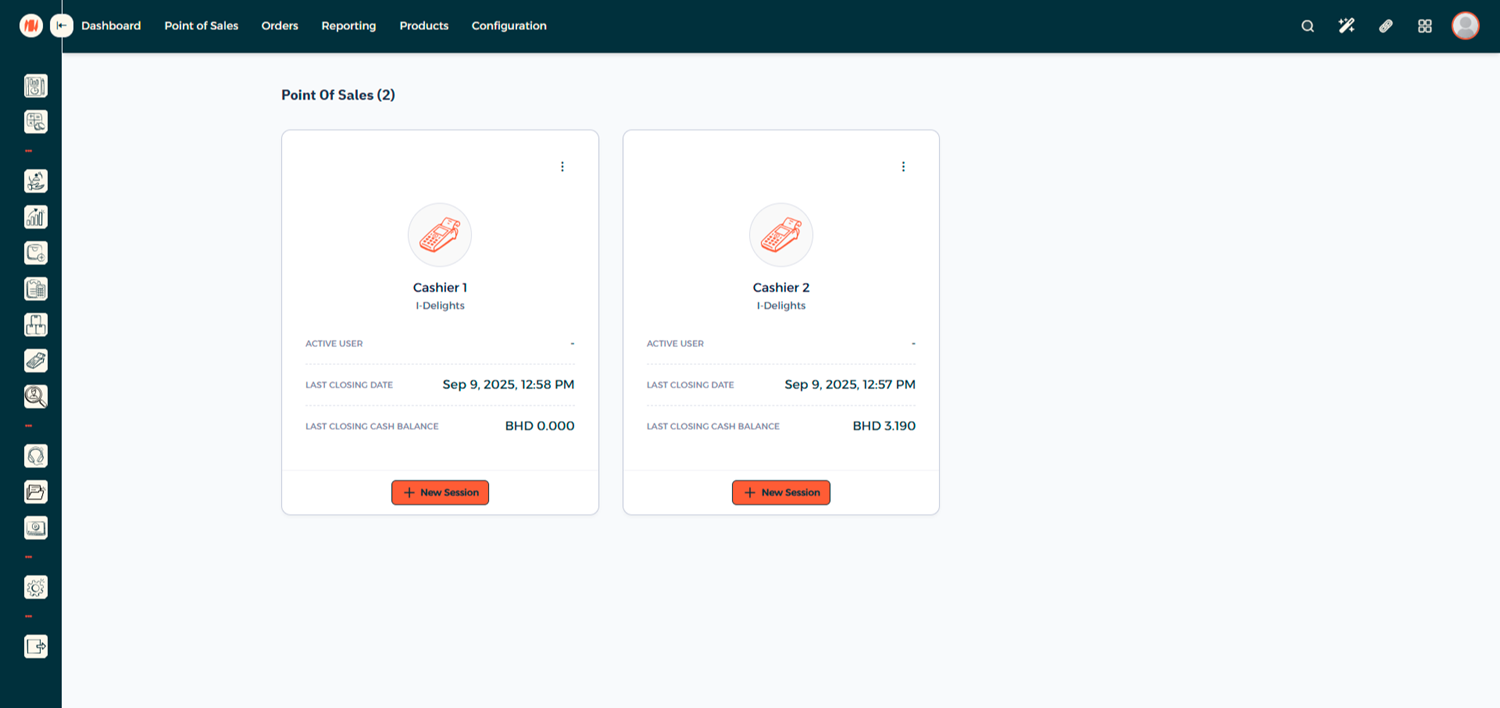
Step 16: Enter the POS Session
Select and enter your POS session
Step 17: Open the Register
You'll be prompted to either Open Register or return to the home screen

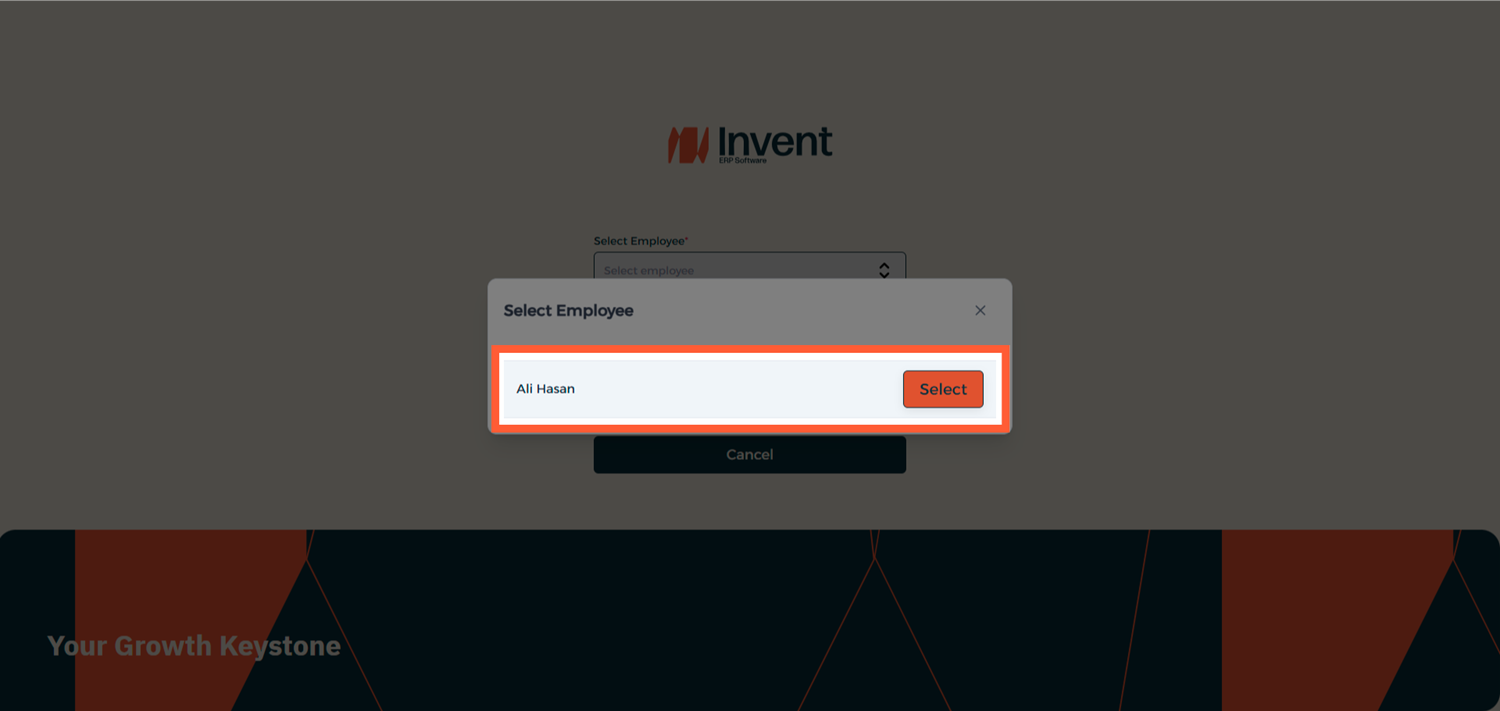
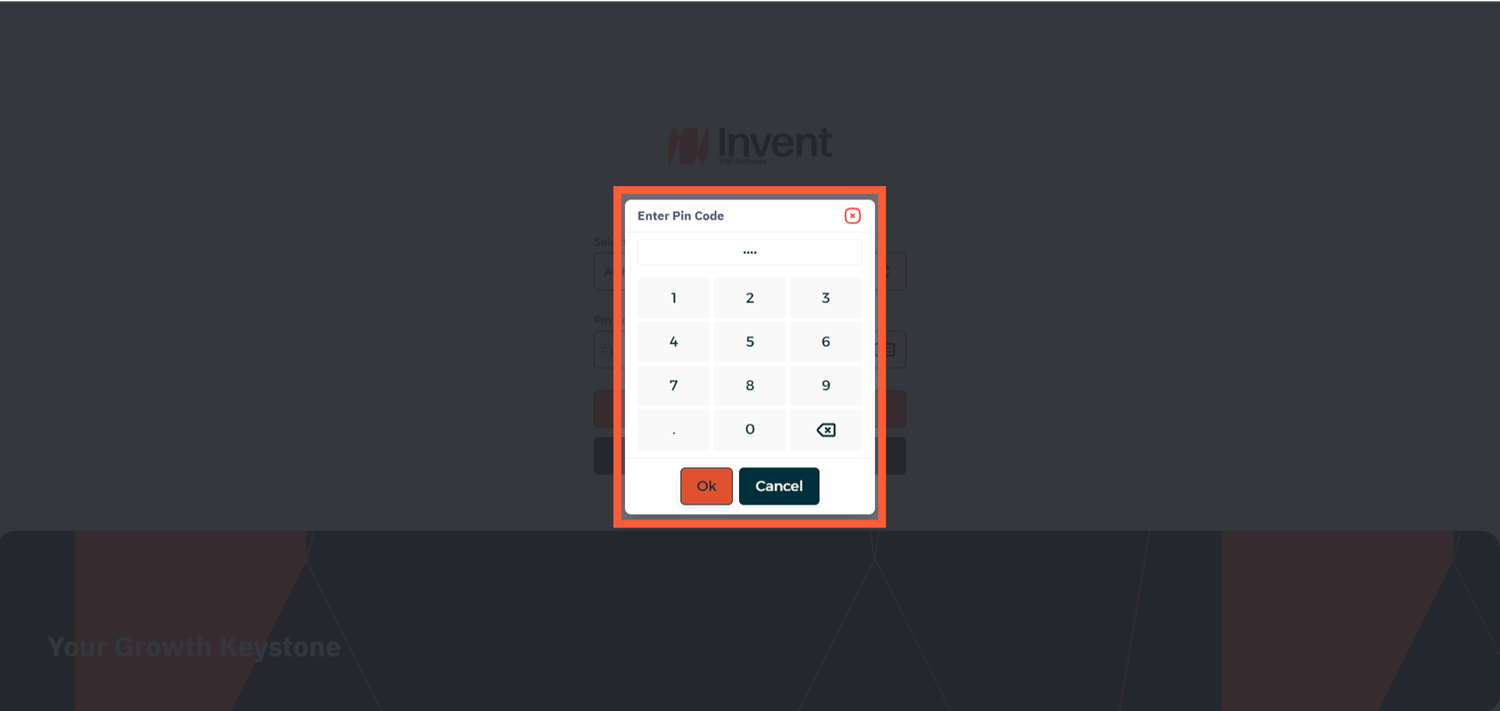
Step 18: Log In Using PIN Code
Select Open Register and enter the employee PIN Code to begin using the POS
Notes & Tips
- Always create unique user accounts for each employee to track individual performance and accountability.
- PIN codes make it faster for the team to switch between users at a busy POS counter.
Frequently Asked Questions (FAQ)
Q: Can one employee be assigned to multiple POS configurations?
A: Yes, an employee can be assigned to multiple POS configurations if they work across different counters or branches.
Q: Can I change an employee's PIN Code later?
A: Yes, you can update or reset the PIN Code at any time from the employee profile.
Q: Can a POS User access other modules?
A: No, a POS User can only access the POS sessions assigned to them. They do not have access to other system modules.