

How to Create an Invoice in Invent ERP?
How to Create an Invoice in Invent ERP?
Invoices are the heart of your business operations - from billing customer to tracking payments and maintaining accurate financial records. Invent ERP makes Invoice creation simple, flexible, and fully integrated with your accounting workflow.
Step-by-Step Process
Step 1: Navigate to Invoices
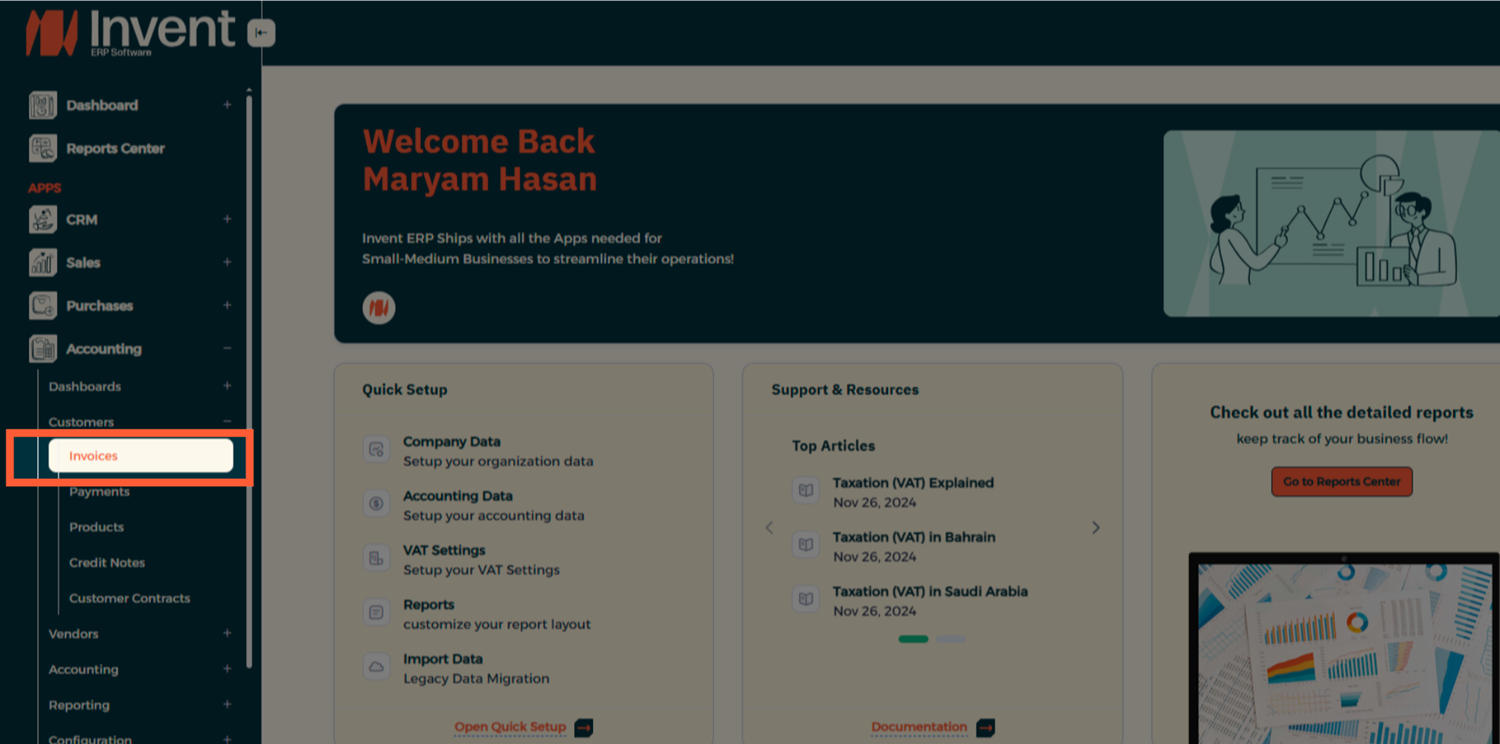
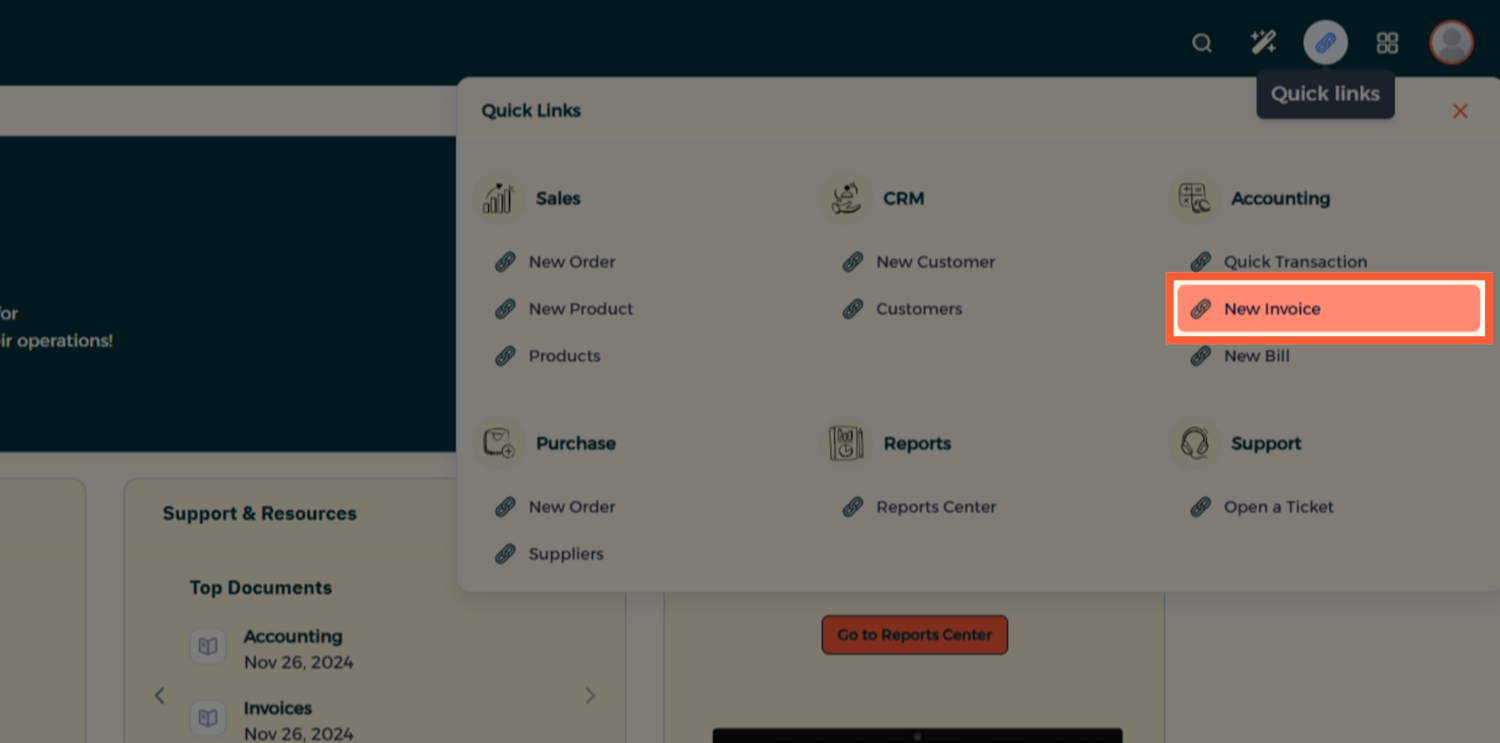
OR
From the Quick links click on New Invoice.
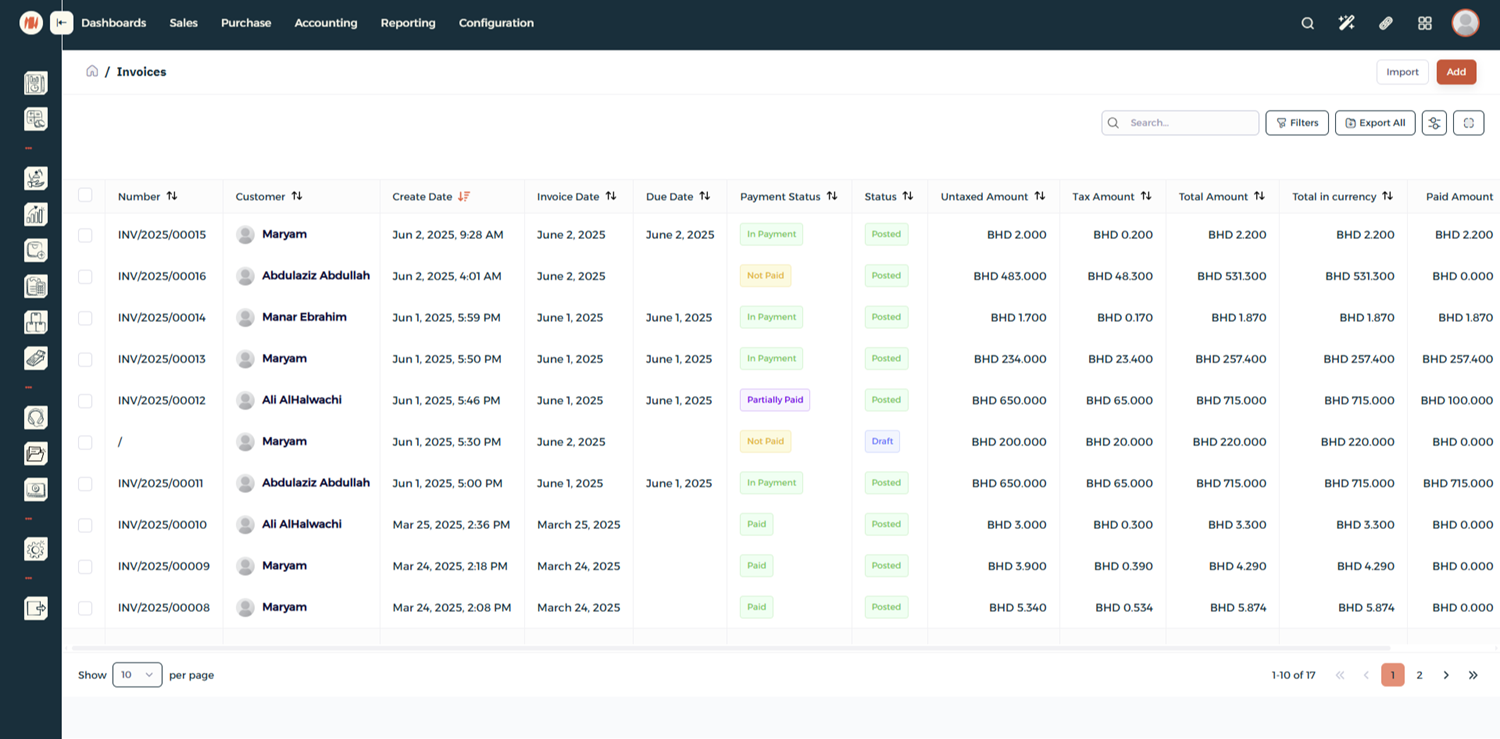
Step 2: Create a New Invoice
Here, you can view all existing invoices along with their amounts and current statuses. Click Add to create a New Invoice
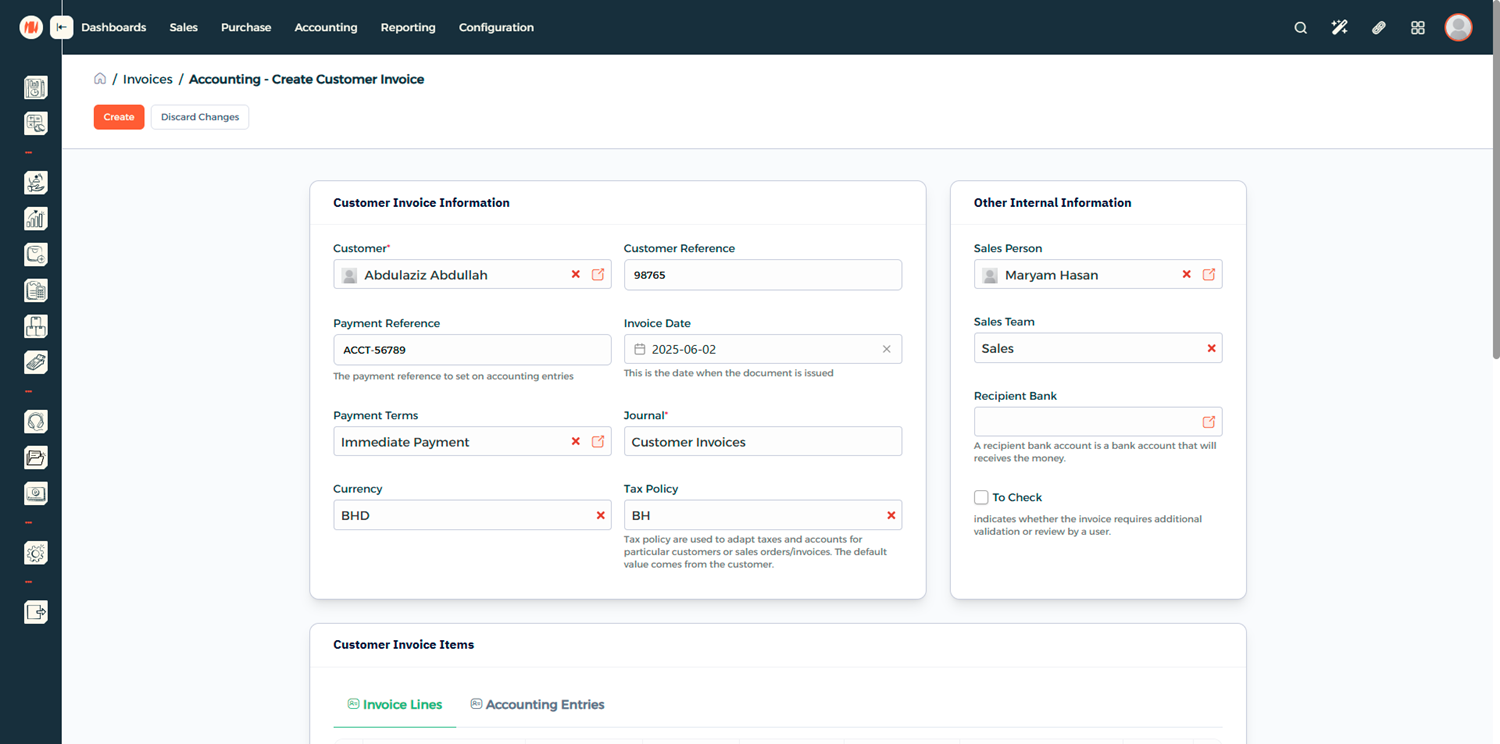
Step 3: Add Details
Start filling the Customer Invoice Information and any Other Internal Information
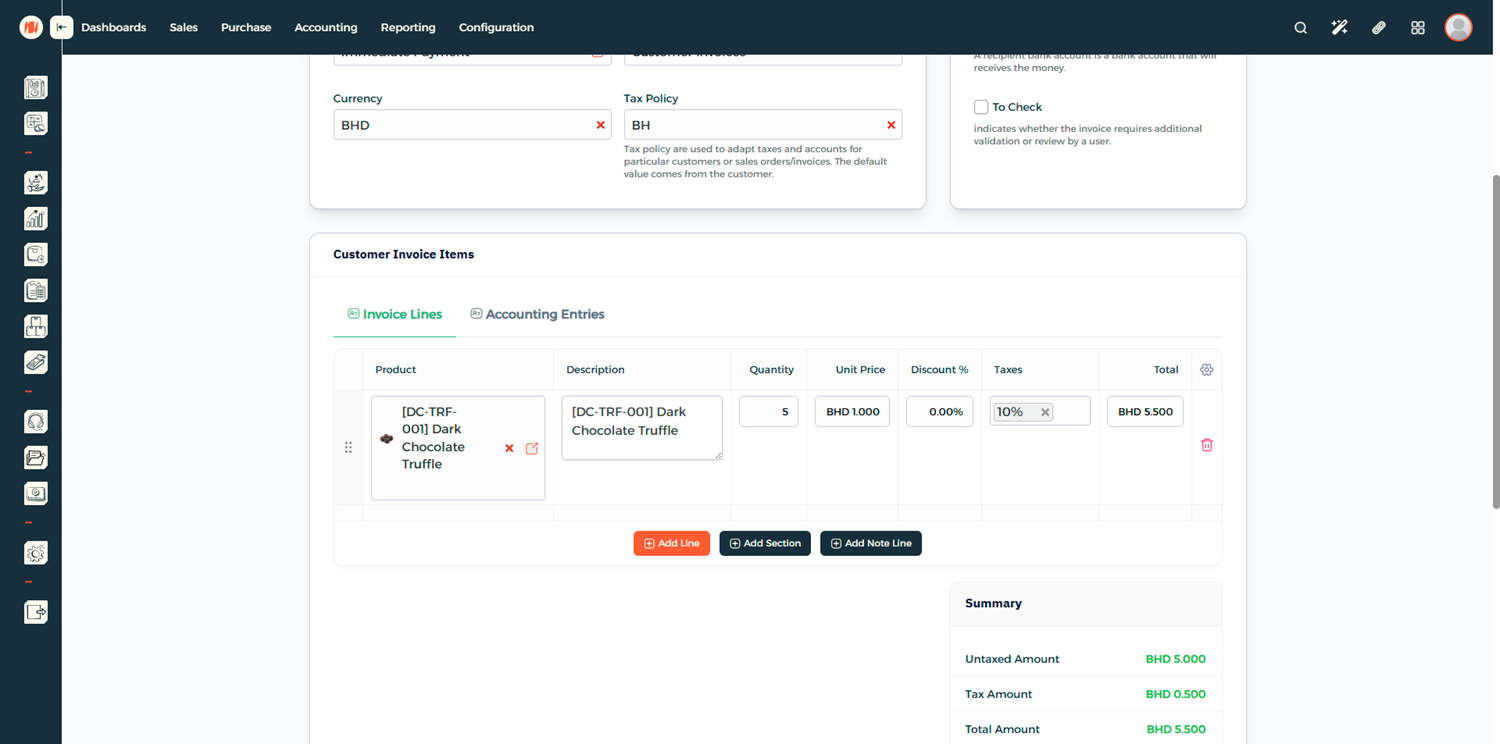
Step 4: Add Invoice Items
Add your Customer Invoice Items where you can define what you are billing the customer for
Step 5: Review Terms and Conditions
Before proceeding, review the Terms and Conditions to ensure they are correct and up to date.
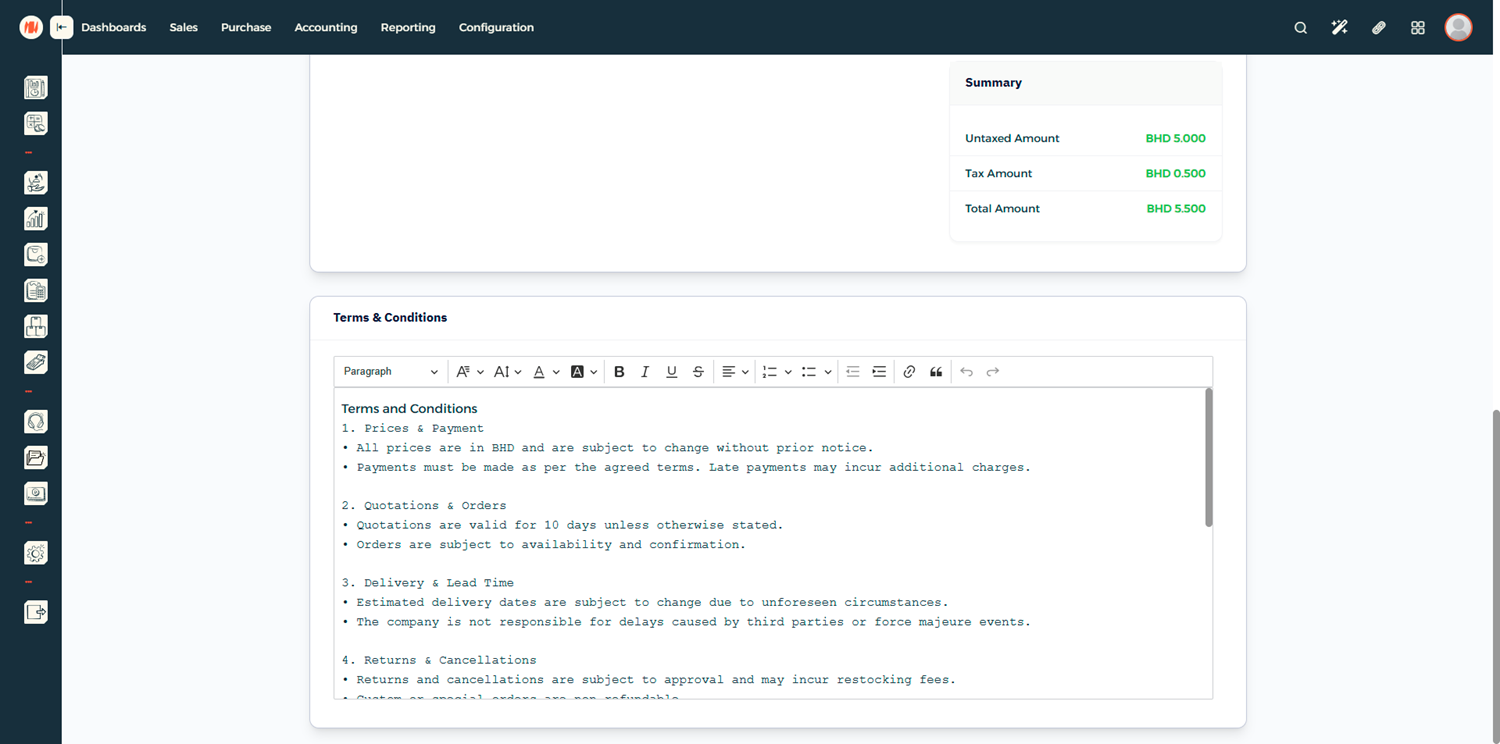
You can add default Terms and Conditions from the Quick Setup.
Step 6: Create the Invoice
Once everything looks correct, click Create.
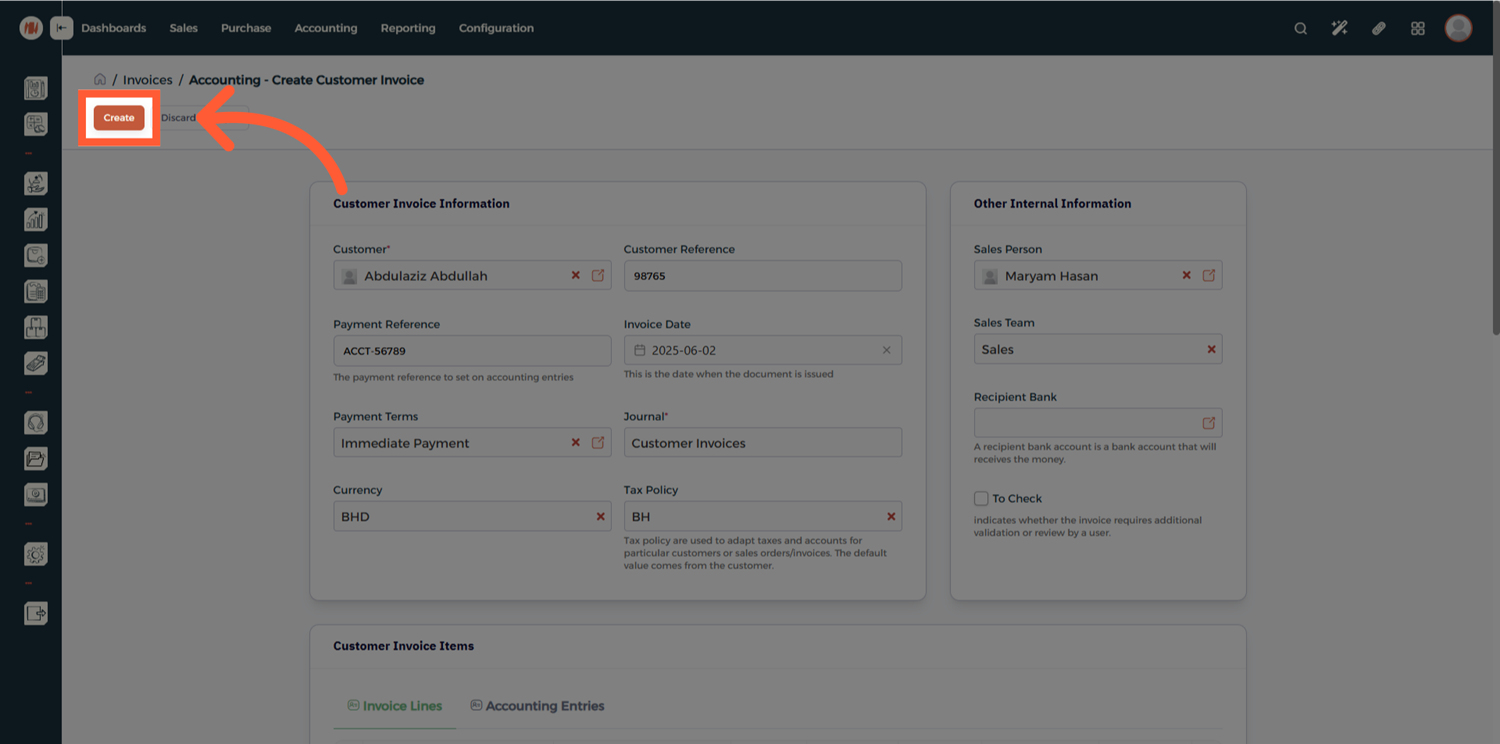
The Invoice will be saved in Draft status, allowing you to review all details before finalizing.
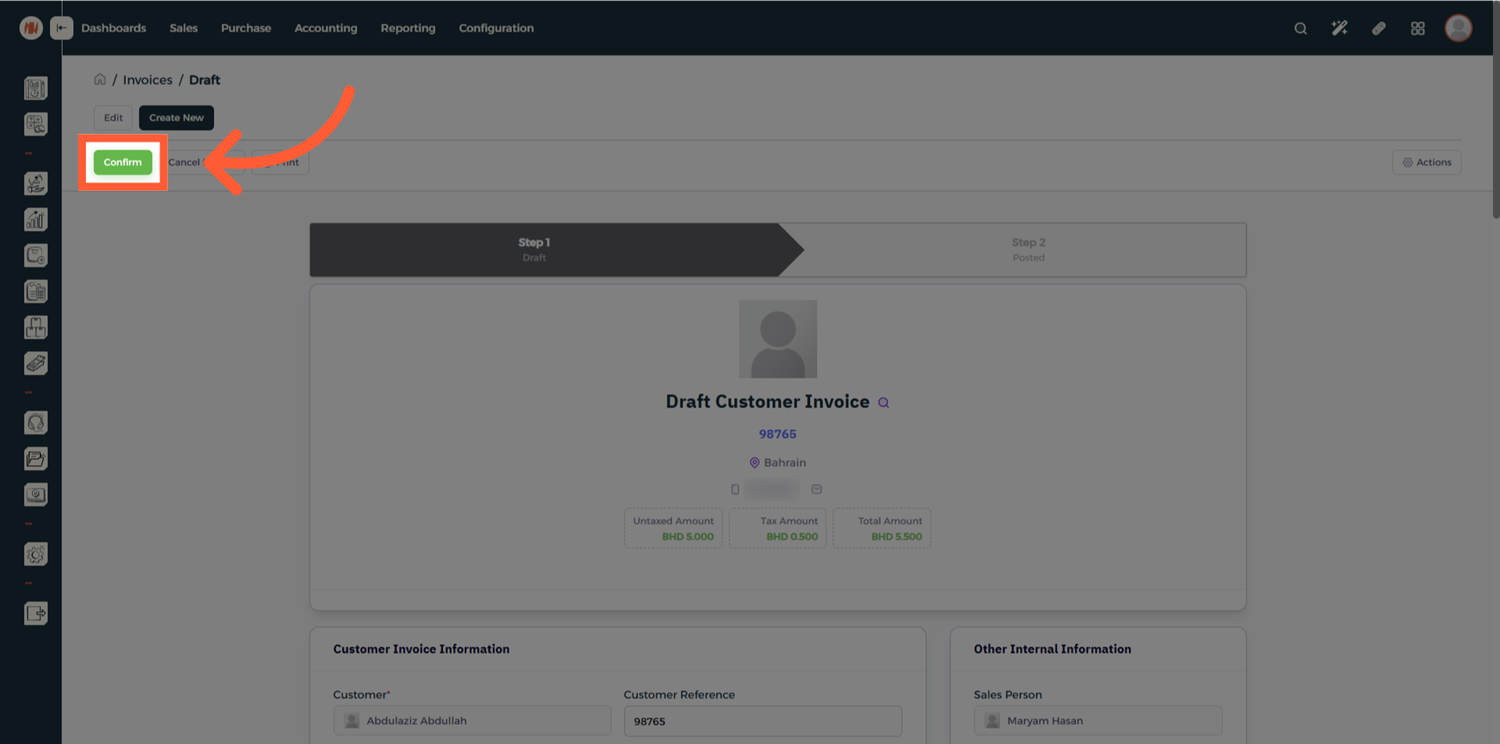
Step 7: Confirm the Invoice
After reviewing the draft invoice, click Confirm to officially issue the invoice.
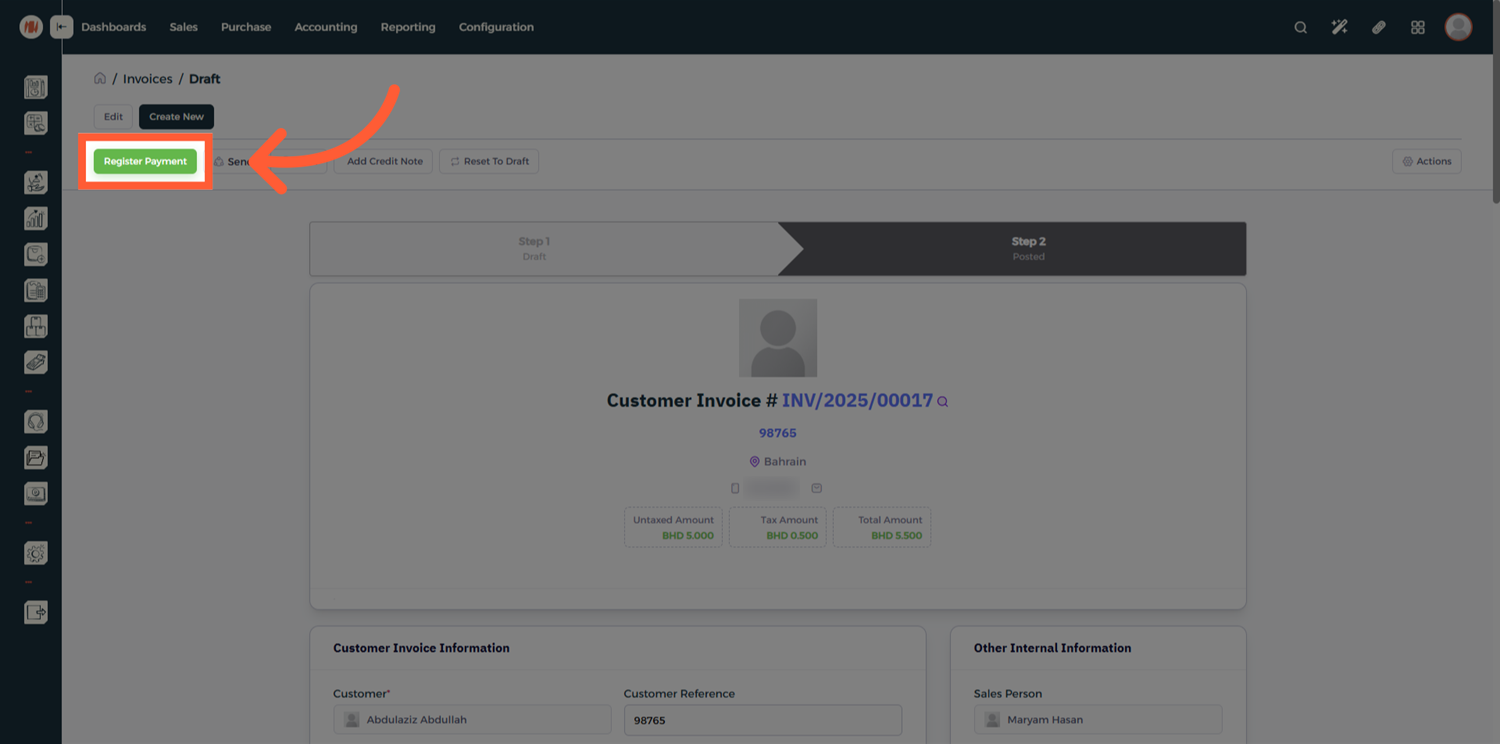
Step 8: Register a Payment
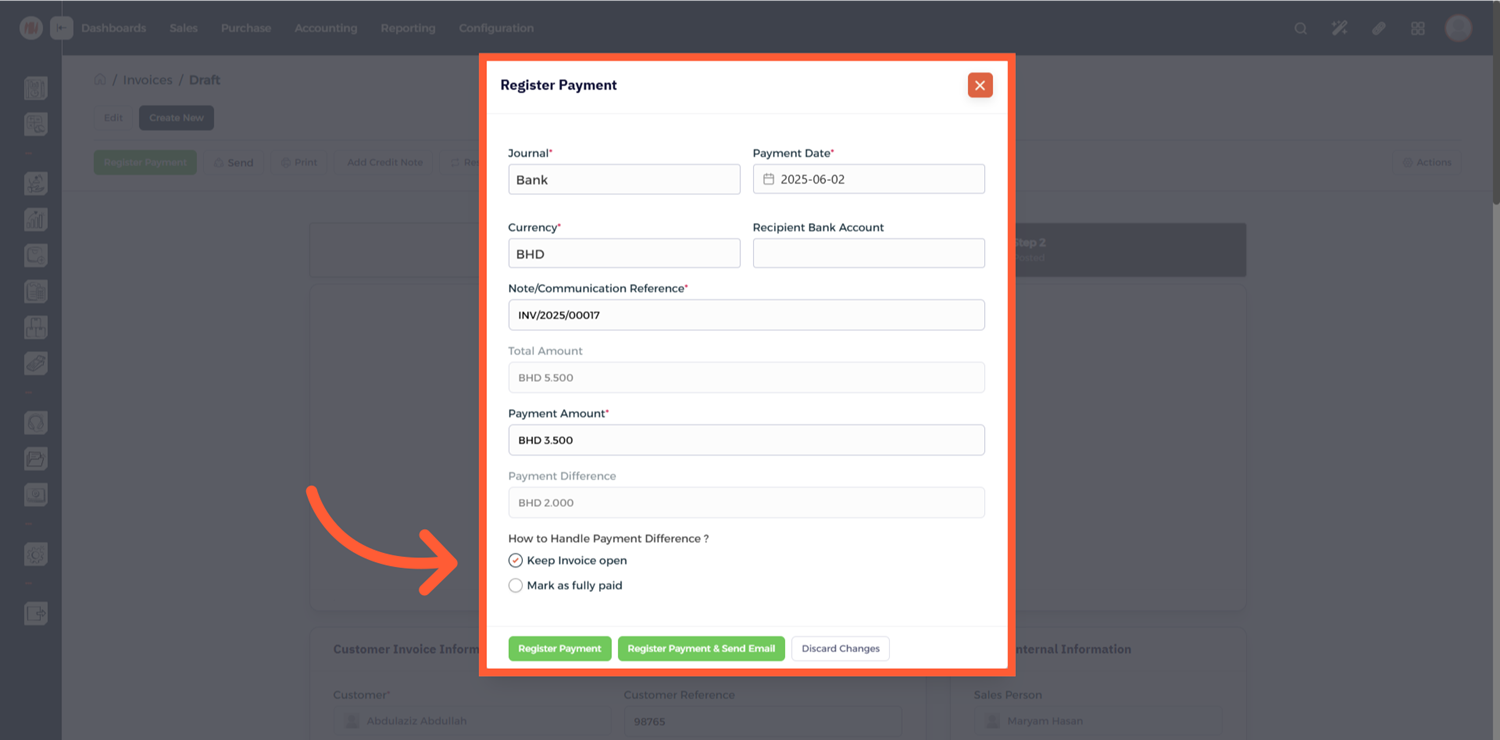
To record a payment, click Register Payment and enter the payment details.
For Partial Payments, simply enter the amount received and the system will automatically calculate the remaining balance and handle any differences.
Notes & Tips
- Always review invoices in Draft mode before confirming.
- You can accept multiple partial payments on the same invoice until it is fully settled.
- Sending invoices by email or WhatsApp allows faster communication.
Frequently Added Questions (FAQ)
Q: Can I edit an invoice after confirming it?
A: Yes, you can reset the invoice to Draft mode, make changes, and confirm it again.
Q: Can I accept partial payments on an invoice?
A: Yes, the system automatically calculates the remaining balance when a partial payment is registered
Q: Can I refund an invoice after it's paid?
A: Yes, you can issue a credit note from the invoice